WordPress Website Creation 2026: A Beginner's Guide
Other
Jan. 20, 2026
WordPress Website Creation 2026: A Beginner's Guide
More than 40% of websites worldwide are based on WordPress. This open source system has been providing solutions for establishing an online presence since 2003.
Creating a website today no longer requires programming skills. WordPress combines ease of use with comprehensive features, making it ideal for beginners. It provides a suitable foundation for creating a personal blog, company website, or online store.
This guide provides a step-by-step introduction to building a WordPress-based website. We cover every stage in detail, from purchasing a domain and setting up a template to uploading content and configuring security. We explain technical terms clearly so that anyone can confidently launch their own WordPress project in 2026.
What is WordPress and why should you use it?
WordPress is more than just a website builder—it's one of the world's largest content management systems, powering nearly a third of all websites. What exactly is this platform, and what's behind its popularity?
Content management system in brief
A content management system (CMS) is software that simplifies the creation, editing, and management of websites. WordPress is an open-source, PHP-based system with MySQL database management.
How it works: it separates the website content from the technical background. New posts or pages can be created, formatted, and updated with just a few clicks, without any programming. The CMS allows multiple users to work simultaneously—the copywriter creates the content, and the graphic designer adds the visual elements.
Who is WordPress recommended for?
The flexibility of WordPress serves a wide range of users. It started out as a blogging platform, but today it offers many more possibilities:
For beginner webmasters: It features an intuitive interface and is easy to use, making it ideal for those just starting out.
For small businesses: A cost-effective choice, as the system itself is free, with numerous free add-ons.
For bloggers: Still an excellent solution for creating and managing blogs.
For online entrepreneurs: With the WooCommerce extension, it can be transformed into a complete online store, which accounts for more than 36% of e-commerce platforms.
It provides a suitable basis for creating a blog, company presentation, portfolio, forum, or complex web store.
Advantages for beginners
WordPress is a particularly good choice for users who are just starting out in the world of websites:
The user interface is intuitive. The administration section is transparent and can be mastered with a little practice. It works with the modern Gutenberg block system, which simplifies content creation and formatting.
No programming knowledge is required. Even if you are starting from scratch, you can choose from free and paid templates to create a unique look without coding. The platform offers more than 20,000 templates, of which approximately 11,000 are available for free.
Its expandability is outstanding. There are approximately 60,000 free plugins available, which can be used to add almost any feature. Email marketing, SEO optimization, social media integration, or web store – these plugins greatly simplify processes.
WordPress has a huge and active user community behind it. If you encounter problems or have questions, it is very likely that someone else has already encountered something similar and found a solution. A wide range of tutorials, forums, and videos are available to help you.
The system is fundamentally SEO-friendly. SEO-optimized URLs, automatic meta titles and meta descriptions, and a manageable tag and category structure help improve search rankings.
WordPress has become the most popular content management system worldwide: it combines flexibility, user-friendly operation, and a wide range of options, making it the ideal choice for beginners and experts alike.
Step 1: Select a domain and hosting
Building a WordPress website starts with choosing a domain name and hosting. These technical fundamentals determine visitor access and content loading speed.
What is a domain and how do I choose one?
A domain name is the Internet address of your website—a unique identifier that visitors use to access your site. It functions as your online address and represents your brand or business.
Important considerations when choosing a domain name:
Keep it short and memorable: Shorter, easier-to-pronounce names are more memorable. Kutyakozmetika.hu is much more practical than szuperkutyakozmetikaszalonbudapest.hu.
Reflect the content or brand: For a well-known business, use the company name. For a specific topic, choose a name that refers to it.
Avoid accented characters: Technically, it is possible to register accented domains, but they are more difficult to type and remember.
The choice of domain extension is also important. The .hu extension inspires confidence in Hungarian audiences, while .com or .eu may be considered for international target groups. The annual registration fee is approximately 3,000 HUF.
Hosting types and recommendations
The hosting service stores your website files and makes them continuously available on the internet. If the domain name is the address, then the hosting is the "house" where the website "lives."
Available storage solutions:
Shared hosting: The cheapest option, where multiple websites share a single server. Suitable for beginner projects, with an annual fee of around $30.
VPS (Virtual Private Server): A higher-level solution with fewer sites on the resources. Recommended for sites with higher traffic, its monthly fee is close to the annual cost of shared hosting.
Dedicated server: Your website is the only one using the entire server. It is more expensive, but offers better performance.
Managed server: A dedicated server where all technical operations are performed by service providers.
Cloud-based solution: Uses multiple servers simultaneously to ensure optimal performance.
When choosing a hosting provider, consider the following: availability (minimum 99%), fast loading, reliable customer service, regular backups, SSL certificate support.
Advantages of WordPress-optimized hosting
WordPress optimized hosting is a service developed specifically for the needs of WordPress-based websites. Advantages of specialized hosting:
Faster loading times, as the servers are configured to suit WordPress specifications. This improves user experience and search engine rankings.
Simpler installation and management with "one-click" WordPress installers. It often comes with a pre-installed WordPress system, which is a great help for beginners.
Enhanced security features: firewalls, malware scanning, automatic backups. Providers are familiar with WordPress-specific threats and offer targeted protection.
WordPress hosting requirements: minimum 64 MB memory, at least 500 MB storage space and 50 MB database, PHP 7.3 or newer, MySQL 5.6+ or MariaDB 10.1+, HTTPS and SSL support.
Although there are free WordPress hosting services available, they offer limited features and may display unwanted advertisements. In the long term, it is recommended to choose a reliable, paid service for optimal website performance.
Choosing a hosting provider and domain together is a practical solution, as everything remains in one place, simplifying website administration.
Installing WordPress and initial settings
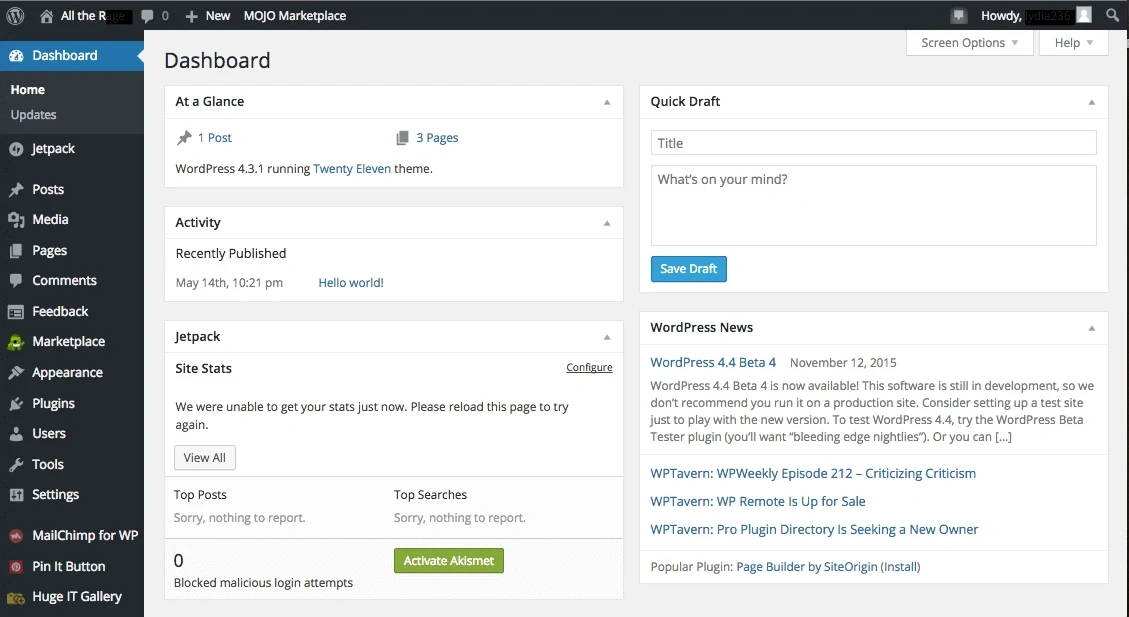
Image Source: Larry Ludwig
After selecting a domain and hosting, the next step is to install WordPress and configure the basic settings. This step determines how the website will function, and in 2026, it can be done using user-friendly solutions.
Automatic vs. manual installation
WordPress can be installed in two ways: automatically or manually. Each method has its own characteristics.
Automatic installation is recommended for beginners. Modern hosting providers offer a "one-click" WordPress installer that can be used without any technical knowledge. The Softaculous installer is usually located in the hosting administration interface (cPanel).
The automatic installation process:
Logging in to the cPanel interface
Find the "Softaculous App Installer" or "WordPress" icon
Fill in the form with your website name, admin username, and password.
Activate the "Install" button
The system installs WordPress in seconds, after which you can start editing.
Manual installation provides greater control, but requires more steps:
Download the latest version of WordPress from wordpress.org
Uploading files to the "public_html" directory using an FTP program
Creating a MySQL database with a username and password
Setting up a database connection in the installation wizard
Enter website name, admin username, and password
Manual installation is more time-consuming, but it allows you to learn more about how WordPress works and does not require a separate installation application.
Basic settings: language, time zone, permalink
After successful installation, you will need to configure a few basic settings that determine how your website will function.
First, you need to check the language settings. To use the Hungarian admin interface, go to "Settings" > "General" and change the "Website language" option to Hungarian.
Secondly, set the correct time zone. In the "Settings" > "General" menu, select "UTC+1" or "Europe/Budapest" from the "Time Zone" drop-down menu. This ensures that entries and comments are accurately time-stamped.
Thirdly, you need to set up permalinks. Permalinks determine the URL structure of your pages and have a significant impact on search engine optimization (SEO). You can find this configuration under "Settings" > "Permalinks."
Instead of the default numeric or date format (e.g., domain.com/?p=123), choose the "Post Title" structure, which results in search engine-friendly URLs (e.g., domain.com/hello-world/). This improves user experience and search engine rankings.
Presentation of the admin interface
The WordPress admin interface (accessible atdomain.hu/wp-admin ) is the control center from which the entire website can be managed. It consists of three main parts:
Top toolbar: The bar at the top of the screen provides quick access to the most important functions—viewing a website or creating new content.
Left menu: The main navigation menu, which contains all important functions: Dashboard: overview of website status Posts: manage blog posts Media library: manage images and media files Pages: manage static content (About us, Contact)Appearance: setting templates, menus, and widgetsPlugins: installing and managing extra featuresUsers: managing usersSettings: basic settings
Content area: The middle and right-hand sections, where the content and settings corresponding to the current menu item are displayed.
The admin interface is intuitive and easy to learn with practice. Login details must be stored in a secure location, as they are used to access the website's control panel.
After installation and basic configuration, the appearance and functionality of the website can be customized.
Customizing the appearance with templates
After installing WordPress, the next step is to design the visual appearance. Templates determine the look, functionality, and usability of the site.
Free and paid templates
WordPress templates are available in two categories: free and premium versions. Free templates offer basic features and are mainly suitable for simpler projects or for familiarizing yourself with the system. They can be installed directly from the Appearance > Templates menu.
The price of paid templates ranges from 19,000 to 39,000 HUF. In these cases:
More detailed customization options are available
Regular updates and support provided
Cleaner code structure results in faster loading
A more professional appearance can be achieved
Popular premium solutions: Avada, Divi, X Theme, Enfold, and BeTheme. These typically cost around $50–$70.
How to choose a template?
When selecting a template, it is worth considering several factors:
Functional requirements – A blog, business presentation, or online store have different requirements. The template includes the features that are necessary for the project.
Visual appearance – The appearance of the page influences visitors' first impressions. It is recommended to choose a template that matches the brand identity.
Universal or specialized – Multipurpose themes allow for more flexible use in case of future expansions.
Code quality – The code structure of the template affects loading speed and SEO performance. It is recommended to look for optimized solutions.
Developer support – Regular updates and customer service ensure long-term operation.
For beginners, Kadence or Neve templates are a practical choice, as they offer a number of pre-designed layouts that are easy to install.
The importance of responsive design
More than half of users browse on mobile devices, so responsive design is essential. This means automatic adaptation to different screen sizes.
The basic elements of responsive web design:
Flexible grid system – use of percentage units
Adaptive media – automatic resizing
Media queries – device-specific styles
Advantages:
Improved user experience on all devices
Google favors mobile-friendly sites
Mobile-first indexing has been in operation since 2018.
Faster loading and better SEO results
More cost-effective maintenance
When selecting a template, you should check its responsiveness. In 2026, modern templates support this by default, but testing on different devices is still recommended.
By choosing and configuring the right template, you can create a website that is visually appealing and functional for your business or personal goals.
Extending functionality with plugins
The basic functions of the website can be significantly expanded with the help of plugins. These add-ons make the WordPress system flexible when building a website.
What is a plugin?
A plugin is a separate software component that supplements the existing functions of a program, enabling the application to perform new tasks or connect to new data sources. WordPress plugins are small programs that add new features to our website or expand the available options.
In the world of WordPress, there are more than 60,000 free plugins to choose from. This selection ensures that you can find a solution for almost any function you can imagine. No programming knowledge is required to use the plugins – you can activate new features in the Control Panel with just a few clicks.
Essential extensions: SEO, security, forms
Regardless of the purpose of the website, there are basic categories that are worth installing on almost every WordPress site:
SEO plugins: Search engine optimization is essential for good visibility. The two most popular SEO plugins are Yoast SEO and Rank Math SEO. These help make your content search engine friendly, which improves your ranking in Google search results.
Security plugins: Wordfence Security is one of the most popular free security plugins that provides comprehensive protection for WordPress websites. This plugin acts as a firewall that protects your website from malware and viruses. Akismet is also an essential security tool that comes standard with new WordPress installations and helps prevent spam comments.
Form management plugins: Contact Form 7 and WPForms are the most popular form creation plugins, with over 5 million users. With these, you can easily create contact forms or more complex questionnaires with just a few clicks.
Speed and optimization plugins: Plugins such as WP-Optimize improve page load speed, which is important for both user experience and search engine rankings.
How to install and update plugins?
Installing plugins is a simple process in WordPress. There are two basic methods you can use:
1. Installation from the WordPress plugin repository:
Log in to the WordPress admin interface
Navigate to "Extensions" > "Add New."
Search for the desired extension in the search field.
Click on the "Install Now" button for the selected plugin.
After installation, activate the extension by clicking the "Enable" button[224].
2. Installation from an external source:
Download the .zip file for the extension from the developer's website.
Log in to the WordPress admin interface
Navigate to "Extensions" > "Add New."
Click on the "Upload Extension" button
Select the downloaded .zip file and upload it.
Activate after installation[224]
Updating extensions is just as important as installing them. Regular updates ensure the security and optimal functioning of your website. Always make a backup of your website before updating so that you can restore it in case of problems.
Automatic updates are convenient, but they can also be risky—an update may temporarily disable certain features of your site. It's a good idea to manage updates manually so you can decide when to update and check for any problems.
Properly selected and regularly updated plugins significantly enrich the functionality of your website, improve the user experience, and help you achieve your business goals.
Creating and editing content
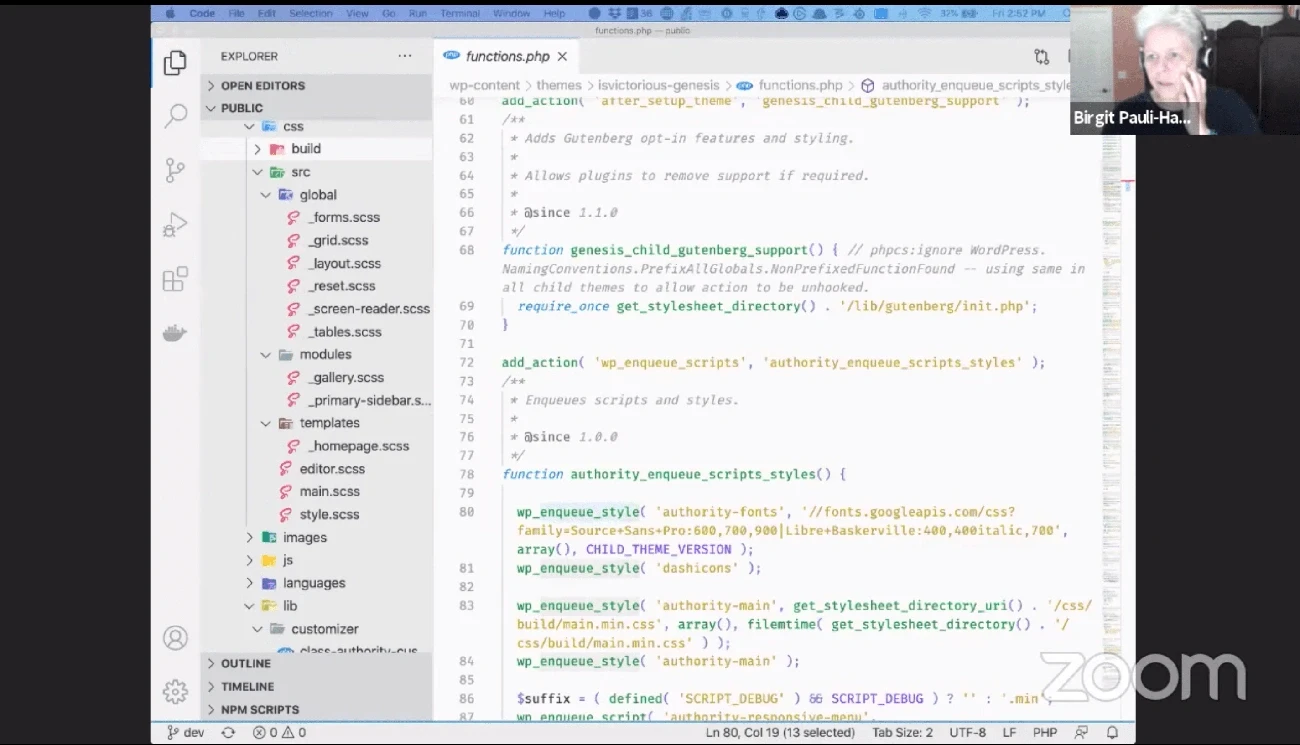
Image Source: Gutenberg Times
After setting up the template and plugins, it is time to create the content for your website. WordPress distinguishes between two basic types of content: pages and posts. Both play a different role in the structure of a website.
Difference between pages and posts
The pages contain permanent, static content. Examples include the "Services," "Contact," and "About Us" menu items. Posts, on the other hand, are time-sensitive content such as blog articles, news, and announcements.
Entries can be categorized and tagged. Pages operate in a hierarchical system without categories or tags. Comments are enabled by default for entries, but not for pages.
In practice, a website usually has few pages (5-10), while the number of posts is constantly growing. Use pages for permanent information and posts for fresh content.
Using the Gutenberg editor
Starting with WordPress 5.0, Gutenberg is the default editor. Its block-based structure simplifies content editing.
To create new content, click on the "Posts" or "Pages" menu, then on the "Add New" button. The editor interface starts with a title bar, below which is the content area.
Click on the "+" button to access the different block types:
Text blocks (paragraph, heading, list)
Media blocks (image, video, gallery)
Layout blocks (columns, grouping)
Widget blocks (calendar, latest posts)
Each block has its own settings. You can easily move blocks around by dragging them to create the layout you want.
Managing images and media
The media library stores uploaded files. You can access stored content in the "Media" menu.
Supported file formats:
Images: .jpg, .png, .webp, .gif
Audio: .mp3, .wav, .ogg
Video: .mp4, .mov, .avi
Documents: .pdf, .doc, .xls
To upload files, use the "Media → Add New" function. For images, fill in the "Alt text" field—this helps visually impaired users and improves search engine optimization.
You can edit uploaded images: resize, rotate, or crop them. For larger projects, check the media library regularly to ensure optimal use of storage space.
Website optimization and security
Proper functioning of a WordPress site requires both speed and security. These factors together determine the visitor experience and business results.
Speed and cache plugins
Website loading speed plays a key role in Google's ranking algorithm, especially for mobile devices. Slow loading times have a direct impact on conversions and business revenue.
Speed optimization starts with measurement. Google PageSpeed Insights provides a comprehensive analysis of desktop and mobile performance. One of the most effective ways to speed things up is to use a cache.
The basic WordPress system does not include a built-in cache function. Cache plugins store static copies of the website, which results in a significant increase in speed. Recommended cache solutions:
WP Fastest Cache – outstanding reviews and a free option
WP Rocket – with a wide range of features
LiteSpeed Cache – with over 3 million active installations
WP-Optimize – database optimization and caching
Further optimization options: Enable Gzip compression, configure browser cache rules, set HTTP headers.
SSL certificate and HTTPS
The use of SSL (Secure Socket Layer) certificates is a basic requirement from both a security and SEO perspective.
As a first step, check your hosting provider's SSL support, ideally the availability of the free Let's Encrypt service. After activating the certificate, test the availability of the website using the https:// protocol.
You need to update the URLs in the WordPress settings: in the "Settings>General" menu, change the WordPress and Website URLs from http://-ről to https://-re. Before making any changes, you must create a backup to ensure that you can restore the site if necessary.
In case of mixed content issues (when some elements are loaded via HTTP), the Really Simple SSL plugin automatically performs the necessary settings.
Backups and updates
Regularly updating WordPress is a fundamental security and performance requirement. Outdated versions pose a security risk, while new versions contain bug fixes and optimizations.
A full backup must be made before every update. According to expert recommendations: "It cannot be emphasized enough that this must not be forgotten before updating."
Backup methods:
Hosting provider's built-in tools
WordPress plugins (UpdraftPlus, Duplicator)
Manual database and file export
Secure storage of backups is critical. Regularly download backups stored in the cloud to an external data storage device.
Ultimately, we consider the importance of the website to our business. Thinking through the consequences of total data loss helps us develop the right security strategy.
Maintenance and long-term operation
The life of a WordPress website does not end with publication. A successful online presence requires constant attention—backups, updates, content maintenance, and system optimization are all part of the process.
Managing Updates
The WordPress system regularly receives new versions, which must be applied to maintain stable operation. Overdue updates can cause code conflicts, leave outdated elements in the system, and make the site vulnerable to attacks.
It is crucial to follow the update sequence: WordPress core, then templates, and finally plugins. This method minimizes the risk of conflicts. If you have multiple plugins, it is best to proceed one by one—this makes it easier to identify problematic elements.
Monthly maintenance is the ideal schedule. According to experts, a three-month break will not cause serious problems, but regular care prevents complications later on.
Updating and expanding content
In addition to technical maintenance, maintaining content quality is equally important. Regularly reviewing existing pages and expanding them with useful information improves the user experience.
The main areas of content maintenance are: adding fresh information, removing outdated sections, fixing broken links, and reviewing SEO settings. These steps not only increase visitor satisfaction, but also improve search engine rankings.
Handling errors and compatibility issues
Technical difficulties may occasionally arise when using WordPress. The most common causes of problems are conflicts between templates and plugins.
In case of an error, it is advisable to take a step-by-step approach. If you are using a cache plugin, it is recommended that you first clear its cache and temporarily disable it. This should be followed by deactivating all plugins and setting the default template (e.g., Twenty Twenty).
After troubleshooting, the components can be gradually reactivated, checking the operation after each step. If the problem recurs, the last component turned on is causing the malfunction.
Additional aspects of long-term stability: managing Google Search Console alerts, fixing broken links, setting up redirects, regular security checks, monitoring loading speed.
Neglecting WordPress can lead to performance degradation and security risks. Regular maintenance ensures optimal performance and protection against potential threats.
Conclusion
Building a WordPress website in 2026 has become a simple process. From domain registration to content publication, every step is easy to follow, even without technical background.
Once the website has been created, ongoing operation becomes important. Regular updates, backups, and content expansion ensure stable operation. A mobile-friendly appearance is now a basic requirement, not an optional extra.
Your WordPress site can be set up within a few weeks. By choosing the right hosting, installing basic plugins, and uploading content, you can create a functional online presence.
Maintenance can be performed on a monthly basis. Updates, security checks, and content updates ensure the proper performance of the website.
You now have all the information you need to start your WordPress project. By following the steps in this guide, you can build your own website without the help of a developer.
Frequently Asked Questions
Q1. How much does it cost to create a WordPress website? The cost of a WordPress website can vary. Basic expenses include the domain name (approx. $10/year) and hosting fees (approx. $30-60/year). Costs can be minimized by using free templates and plugins, but additional expenses should be expected for premium themes and plugins.
Q2. How long does it take to build a WordPress website? A simple WordPress website can be built in a matter of hours, but a more complex site can take days or even weeks to complete. The exact time frame depends on the complexity of the website, the content, and the level of customization.
Q3. Do I need programming skills to use WordPress? No, you don't need any programming skills to use WordPress. The system's user-friendly interface allows you to create and manage websites without any technical background. However, some knowledge of HTML and CSS can be useful for more detailed customization.
Q4. How can I make my WordPress website secure? There are several steps you can take to make your WordPress website secure: use strong passwords, install security plugins, keep WordPress and plugins up to date, use an SSL certificate, and make regular backups.
Q5. How often should a WordPress website be updated? It is recommended to update the WordPress system, templates, and plugins at least once a month. This ensures the security, performance, and compatibility of the website. In addition, regular content updates are also important for visitors and search engines.